.png)
Installing Your Kajabi Website Template
Congrats on your brand new Kajabi Website Kit! It's going to look SO amazing when you're done with it. First things first: let's get it into your Kajabi account.
Your website comes in two parts, and you'll need both:
- The website theme file. This holds Kajabi's built-in system pages (like your login and library pages).
- Your page files. Your Home, About, Resources, Links, Coming Soon, and other pages each come as their own landing page file.
Upload the theme first, then the pages. Let's go!
Before you start
- Keep every file zipped. The theme and each page are their own .zip file. Download them from your Google Drive folder one at a time, and don't unzip them. Kajabi needs the zips.
- Your current website is safe. Uploading a new theme doesn't replace your live site until you tell it to. So breathe. You've got this.
- Heads up if you've added custom code: anything you added in Kajabi's Code Editor on your old theme won't come along to the new one. Copy it somewhere safe first.
Step 1: Upload your website template
- From your Kajabi dashboard, click Website, then the Design tab.
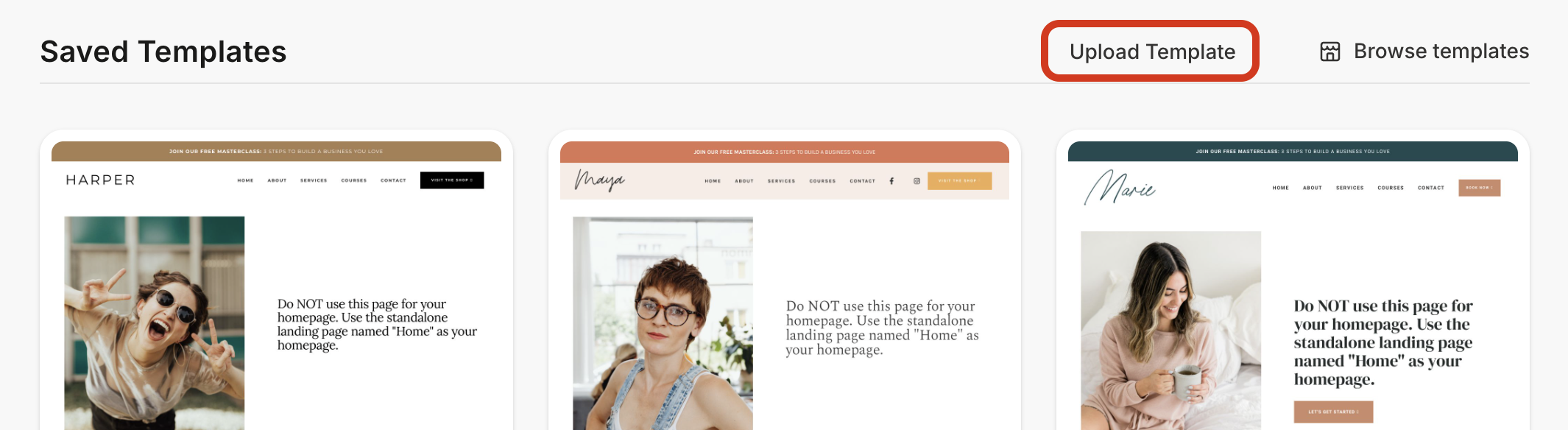
- Scroll down to Saved Templates.
- Click Upload Template.
- Drag your website template .zip file into the uploader (or click to browse for it).
- Wait for it to finish. Your new template will show up under Saved Templates.
Step 2: Upload your page files
Now let's add your Home, About, Resources, and the rest. Each one is uploaded as a landing page:
- Go to Website → Landing Pages.
- Click Upload Template.
- Choose one page .zip file and upload it.
- Repeat for each page. (Yep, one at a time. Put on a good playlist.)

Once they're in, rename each page and set its link so your web addresses look nice. Click the … menu next to a page, choose Edit details, and update the Page title and URL (like about or resources).
Step 3: Set your Home page
Since your Home page is a landing page, tell Kajabi to use it as your homepage. Click the … menu next to your Home page and choose Set as homepage.
Step 4: Set up your navigation menu
Your pages are in, but your menu doesn't know about them yet. Follow Setting Up Your Website Navigation Menu to add your pages to the menu at the top (and bottom) of your site.
Step 5: Preview and make it live
- Go back to Website → Design and find your new theme under Saved Templates.
- Click Preview to see it, or Customize to start editing.
- When you're happy, click the … menu on your theme and choose Publish (Kajabi may call this "Make live").
- Publish each of your landing pages too.
That's it — your new site is out in the world!
Next steps
- Set your logo, fonts, and colors in Settings → Branding. See Kajabi's Branding Settings + Your Template to learn how that works with your template.
- Swap in your images with the Canva templates in your kit. Match the sizes from the demo so everything lines up nicely.
- Add your SEO and social sharing info. See How to Update Social Sharing Settings.
Stuck? Submit a support ticket and I'll help you out.